- Switch to English: Go to app settings to change the display language to English for easy searching.
- Change language: Tap the three-line menu (☰) ➡️ Gear icon ➡️ Language (언어) ➡️ English.
- Set Your Route: Enter your starting point and destination into the unified search bar at the top.
- Choose Your Transport: Tap the icons to select public transit, driving, walking, or cycling.
- Check Live Times: View real-time countdowns for the exact minute your bus or subway train arrives.
- Preview Your Destination: Tap “Street View” or “Aerial View” to visually inspect the area before arriving.
- Save Your Favorites: Tap the star icon on restaurants or cafes to save them directly to your itinerary map.
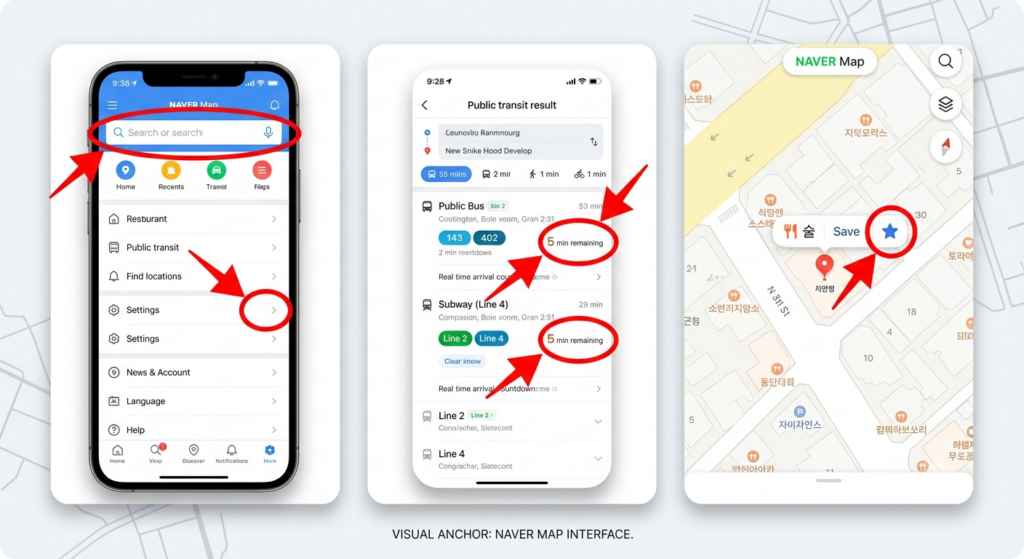
- Left Image: The home screen highlighting the top search bar and the English menu layout.
- Center Image: A public transit route result page, showing the bus numbers, subway lines, and the real-time arrival countdown.
- Right Image: A close-up of a pinned restaurant on the map with the “Save” (star icon) highlighted.
Visual Tip: Use bright red arrows or circles in your photo editor to point out the English setting button and the real-time countdown text so readers know exactly where to look.
Finding Places
- Search bar: Type addresses, phone numbers, or English keywords at the top.
- Pin drop: Tap anywhere on the map to see details about that location.
- Save locations: Tap the star icon on a place to bookmark it.
Navigating to Your Destination
- Get directions: Tap the blue “Directions” button at the bottom.
- Set route: Enter your starting point and your destination.
- Choose transport: Select from four icons at the top of the screen:
- Public Transit: Shows buses, subways, transit times, and live arrival schedules.
- Driving: Provides real-time GPS navigation, toll costs, and speed camera alerts.
- Walking: Offers pedestrian pathways and vibration alerts for turns.
- Cycling: Shows bike-friendly paths and elevation changes.
Helpful Features for Travelers
- Street view: Tap the map style icon (overlapping squares) ➡️ Street View (거리뷰) to see real photos.
- Subway map: Tap the menu (☰) ➡️ Subway Map to view the entire train network.
- Taxi call: Links directly to taxi services from your current route screen.